This chapter describes and explains the calculations, evaluations and optimizations done in the tool.
Contents
A click on the arrow icon |
|
on the bottom opens up the evaluation and optimization menu |

By clicking on the button |
|
the current line is evaluated and results are presented on the right(see figure 1). |

By clicking on the button |
|
the evaluation results are shown in the modeling surface (see figure 2). |

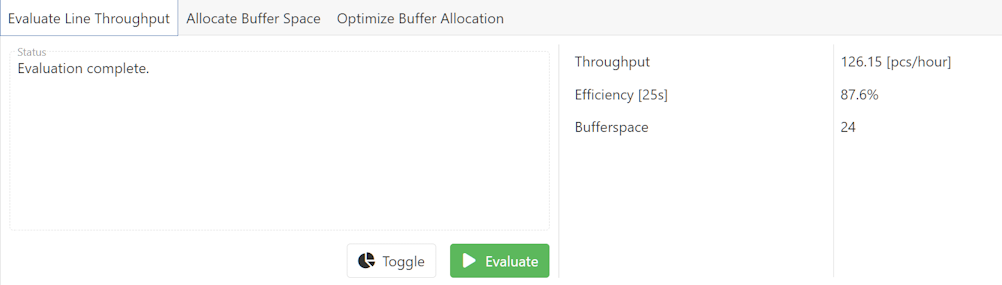
Figure 1 - Evaluation results
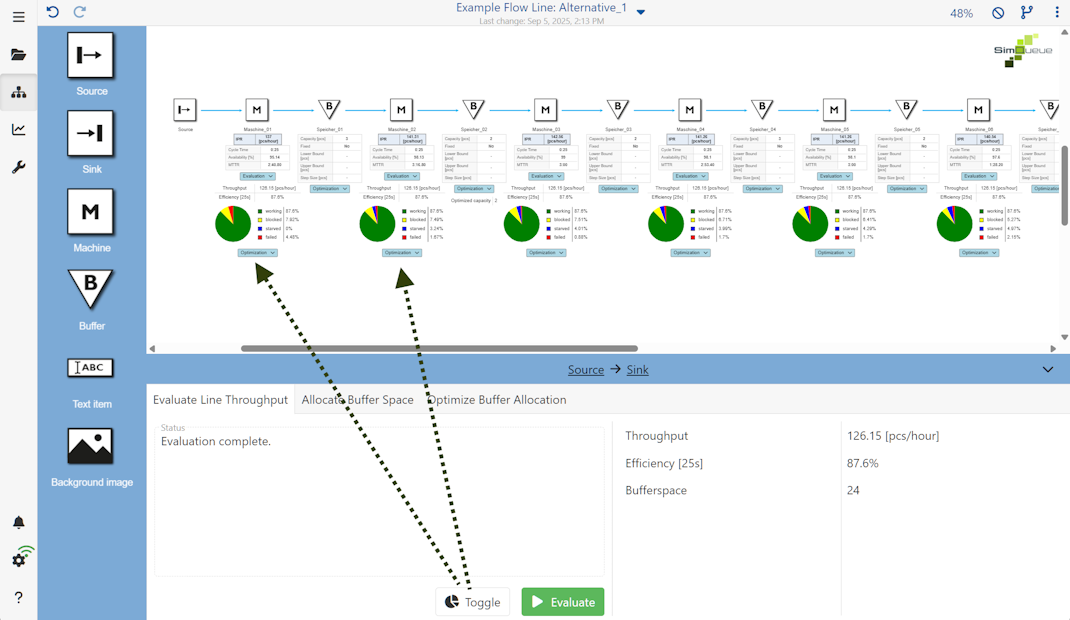
Figure 2 - Evaluation results in modeling surface
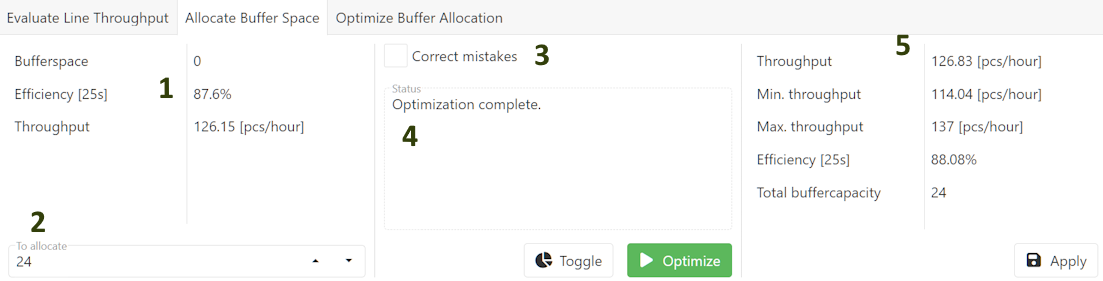
Figure 3 - Allocate buffer space

The calculated values (from the evaluation) for the reference line.

The number of buffer slots to be distributed.
In the tab optimization:
•Target efficiency: The efficiency to be achieved through optimization
•Target throughput: The throughput to be achieved through optimization

Correct mistakes
If activated: The algorithm attempts to adjust mismatched constraints (e.g., barriers do not match the step size). Information about adjustments is then displayed in the status window.

Status
The status window displays information about the current run of calculations. For example, errors or information about the result are displayed here.

Result of optimization:
•Throughput that can be achieved.
•Min. throughput if all buffers were 0.
•Max. throughput if all buffers run to infinity.
•Efficiency of the line (reference cycle time in parentheses)
•Number of buffer locations in the optimized line
Button |
Description |
|
Shows optimization results in the modeling surface (see figrure 4) |
|
Starts the optimization algorithm |
|
Applies the current buffer space allocation to the line.
|


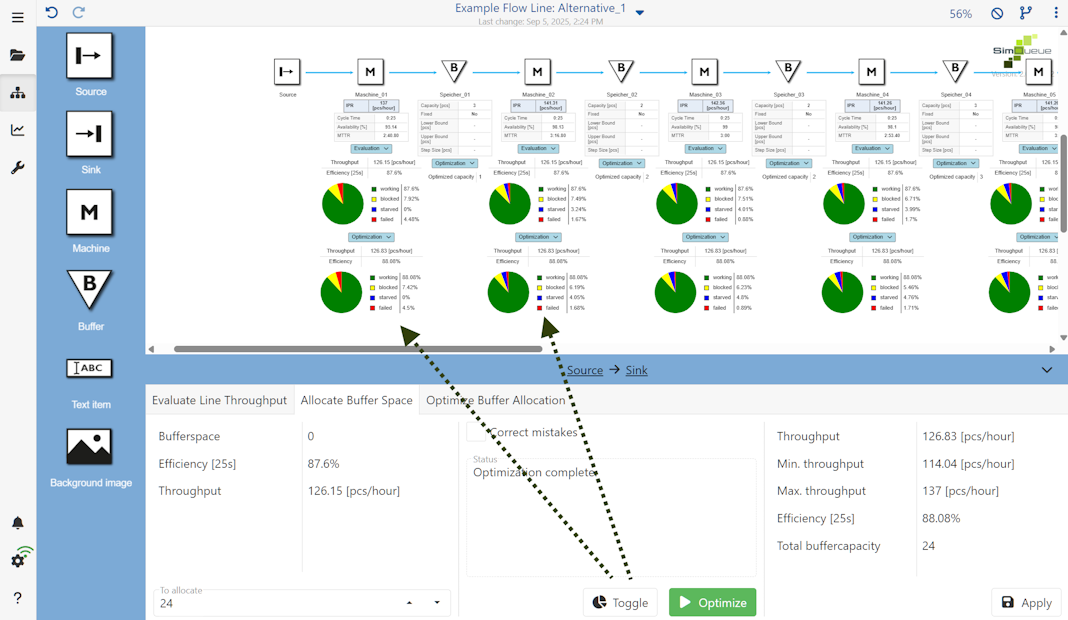
Figure 4 - Optimization results
The settings in this tab are the same as in Allocate Buffer Space except for the ones marked in the figure 5.
Setting |
Description |
Target Efficiency [%] |
The efficiency to be achieved through optimization. |
Target Throughput [pcs/hour] |
The throughput to be achieved through optimization |
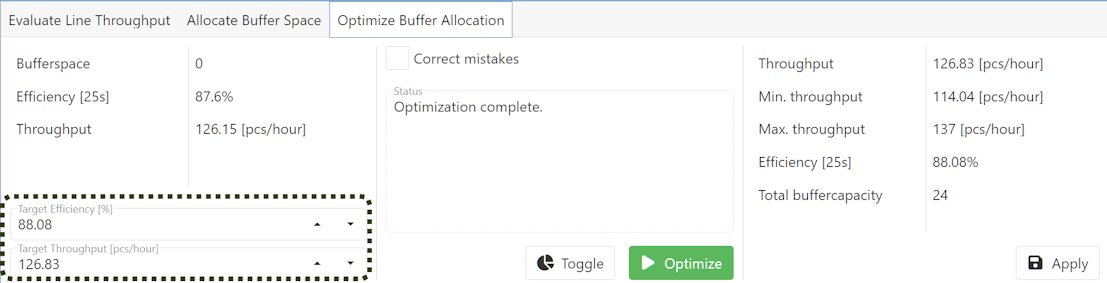
Figure 5 - Optimize buffer allocation
© SimPlan AG - Hanau District Court, Commercial Register (Part B) 6845 - info@simplan.de - www.simplan.de/en