This chapter describes the general parameterization options for objects. The symbols described here for the parameterization of objects are the same for all objects.
The following table lists the existing symbols and explains them:
Button |
Description |
|
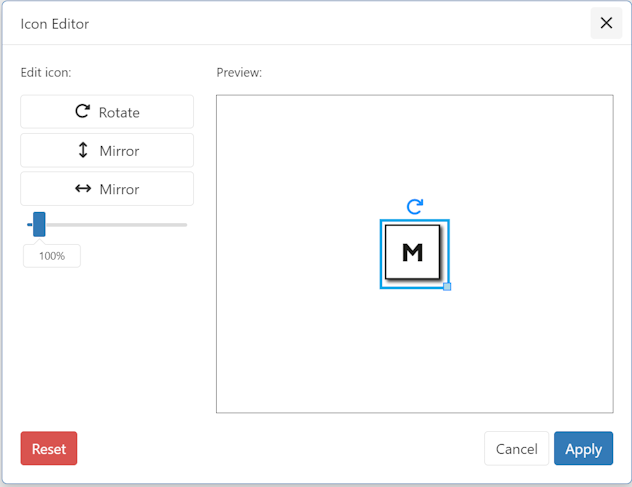
Opens the Icon Editor. Here the icon can be rotated or mirrored or a alternative icon can be choosen. Also, a custom size can be set for the icon.
|
|
Deletes the object |
|
Opens the editing menu of the object. Detailed instructions for this menu can be found in the chapter Using objects |
|
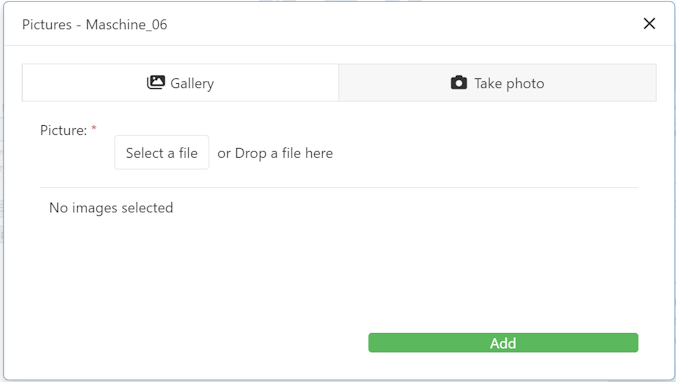
Opens a dialog in which either a picture can be taken with the help of a webcam, or an image can be loaded from Windows Explorer.
|
|
Opens the photo gallery of the object. Photos that were previously created are displayed here. With the option Show in Model, photos can also be displayed and arranged directly in the modeling interface. Furthermore, the anchor at the lower right edge can be used to adjust the size of the image. |
|
Hides extended product information/images (if displayed) |





© SimPlan AG - Hanau District Court, Commercial Register (Part B) 6845 - info@simplan.de - www.simplan.de/en